
Troubleshooting
The microphone doesn’t respond
Section titled “The microphone doesn’t respond”- In System Settings > Privacy & Security > Microphone, check that ASIST is turned on. After you turn it on, reopen ASIST.
- Click
MIC OFFon the screen and check that the microphone is on. - If the permission seems to be in a wrong state, remove it with the steps in Resetting the permission and grant it again.
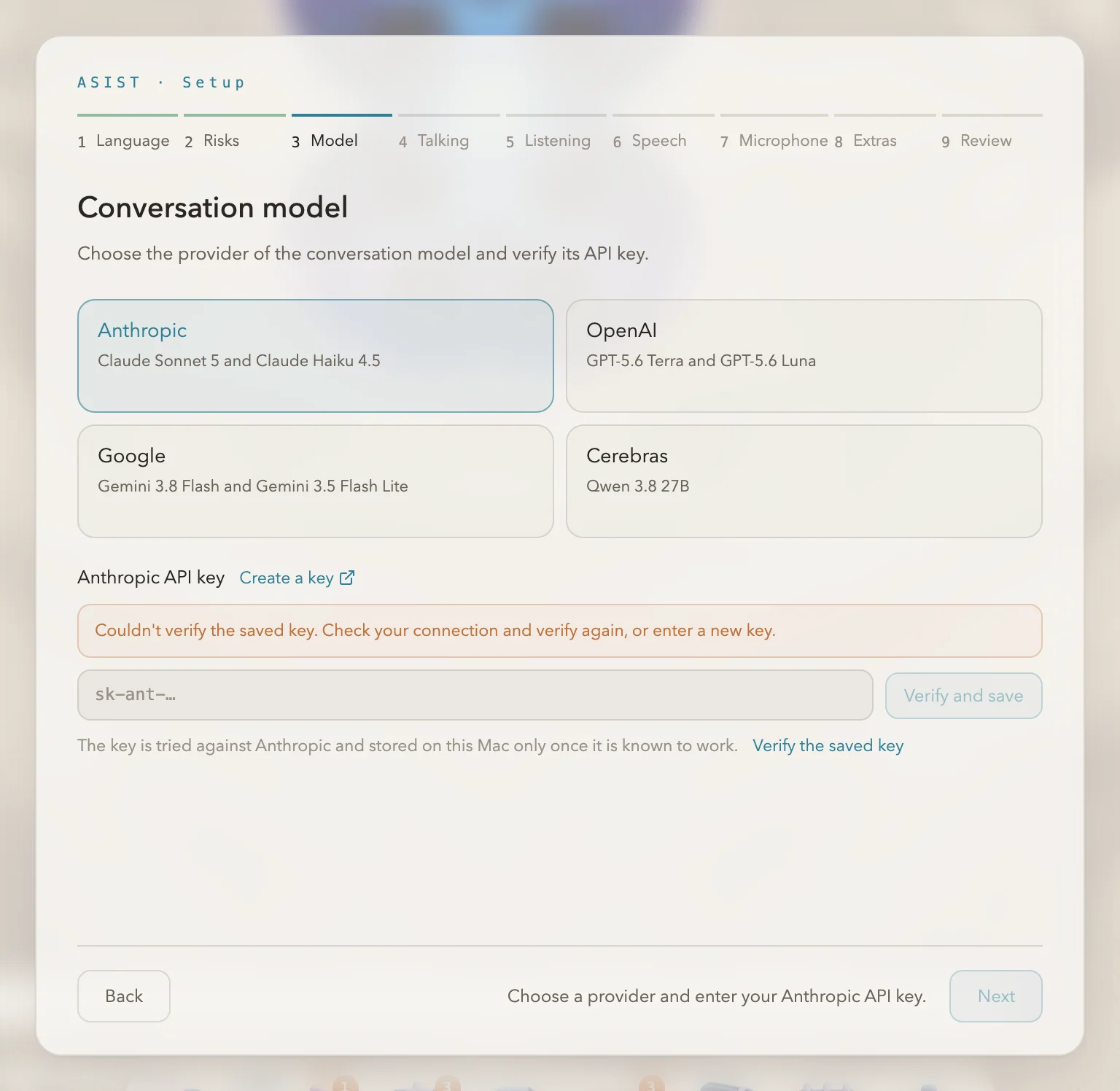
The API key can’t be checked
Section titled “The API key can’t be checked”If the first-time setup or “Integrations” in the settings says the key couldn’t be checked, make sure you copied the key correctly, and that your account with the provider has credit or usage quota left.
There is no voice
Section titled “There is no voice”- If you chose VOICEVOX or AivisSpeech for reading aloud, check that the app is in the Applications folder. If ASIST can’t find it, the reason appears in the setup and under “Voice” in the settings.
- If you chose the macOS voice, check that a voice for the conversation language is installed. If there isn’t one, add it from System Settings > Accessibility > Spoken Content > System Voice.
- If you changed the conversation language, reading aloud may have switched to the macOS voice. Check “Voice” in the settings again.
Agent jobs don’t start
Section titled “Agent jobs don’t start”- Check that the CLI of the engine you chose under “Agent” in the settings (codex or claude) is installed and signed in. How to set it up is covered in The Agent CLI.
- claude runs with an API key. Signing in with a Claude.ai subscription doesn’t work.
The calendar or mail won’t connect
Section titled “The calendar or mail won’t connect”See “If it does not connect” in Connecting your calendar and Connecting your mail.
At startup, ASIST says it can’t read a file
Section titled “At startup, ASIST says it can’t read a file”A file such as the settings was written by a newer version of ASIST than the one you are running, or it is damaged. ASIST leaves the file at the location shown untouched. Replace ASIST with the newer version, repair the damaged file, or move it somewhere else, then open ASIST again. For details, see Where your data is kept.
Reporting a bug
Section titled “Reporting a bug”Open the log folder from “App log” in “Conversation” in the settings, and write to GitHub Issues with that day’s file attached. Keys and passwords in the log are masked. Report security vulnerabilities with the steps in SECURITY.md, not in a public issue.