
Using your ChatGPT plan
ASIST can hold the conversation on your ChatGPT Plus or Pro plan through OpenAI’s “Sign in with ChatGPT”. You do not create an API key, and the conversation counts towards your plan’s usage. The steps are the same on a Mac and on Windows.
What signing in does
Section titled “What signing in does”- ASIST is added to your ChatGPT account as an app named “ASIST”. When you sign in, OpenAI gives ASIST the name, email address and profile picture of the account. ASIST keeps only the email address and the tokens that keep you signed in.
- When you allow it to use your plan, conversations in ASIST count towards your plan’s usage.
- ASIST cannot see your ChatGPT conversations or your ChatGPT memory. Permission to use your plan does not include them.
- ASIST has no server of its own. Signing in and every conversation go between this computer and OpenAI.
Which plans can be used
Section titled “Which plans can be used”Only ChatGPT Plus and Pro can be used. If you sign in with an account on another plan, a conversation says “This ChatGPT account’s plan can’t be used in ASIST. It needs a Plus or Pro plan.” Use another provider’s API key instead.
-
Sign in with ChatGPT
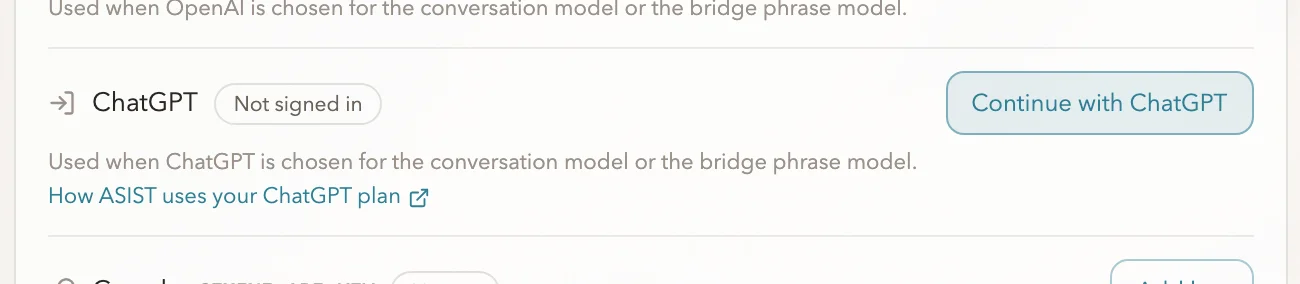
Choose “ChatGPT” in the conversation model step of the first-run setup, or click “Continue with ChatGPT” in the “ChatGPT” row of the API keys page in the settings.
-
Allow ASIST in the browser
ChatGPT’s sign-in page opens in your browser. Sign in with the account to use, check what ASIST will receive and the “Use your ChatGPT plan” permission, and continue. Without permission to use your plan, ASIST cannot hold a conversation.
When the page says “Signed in with ChatGPT. Close this tab and go back to ASIST.”, close the tab and return to ASIST. Finish the sign-in in the browser within 5 minutes.
-
Close the notice about using your plan
The first time you sign in, a notice says that conversations in ASIST count towards your plan’s usage. Close it once you have read it.
-
Choose ChatGPT for the conversation
When you signed in during the first-run setup, the conversation model and the bridge phrase model become ChatGPT’s GPT-5.6 Terra and GPT-5.6 Luna. When you signed in from the settings, choose “ChatGPT” as the provider under “Conversation” in the settings.

Usage and limits
Section titled “Usage and limits”- Conversations, bridge phrases and history summaries count towards your plan’s usage. OpenAI counts them as the ChatGPT Work and Codex usage included in your plan.
- What ASIST used appears in ChatGPT’s usage settings, where you can also set the weekly share ASIST may use. “Manage usage” under “Conversation” and on the API costs page of the ASIST settings opens it too.
- Plus has a usage limit every five hours, shared with ChatGPT itself and every other app. Pro has no five-hour limit.
- When a limit is reached, ASIST says “The ChatGPT usage limit was reached.” and stops. It does not switch to an API key you saved to carry on. Wait for the limit to reset, or check your usage in ChatGPT’s settings.
- The API costs page of the settings shows the tokens of ChatGPT’s conversations without a price.
How it differs from an API key
Section titled “How it differs from an API key”- Replies start about a second later than with the same model on an API key.
- The models you can use are those of GPT-5.6 Luna, GPT-5.6 Terra and GPT-5.6 Sol that your account offers. If you choose one it does not, saving says that it is not available to the signed-in ChatGPT account.
- Web search works.
Signing out and disconnecting
Section titled “Signing out and disconnecting”- “Sign out” in the “ChatGPT” row of the API keys page tells OpenAI to revoke the sign-in and deletes the saved tokens. The account’s address stays for the next sign-in.
- To switch to another account, click “Continue with another account”. The sign-in of the previous account is revoked at OpenAI as well.
- You can also disconnect from ChatGPT’s side: in ChatGPT’s settings, open Security and login, then Sign in with ChatGPT, choose ASIST and disconnect it. Signing out in ASIST alone does not remove ASIST from that list.
How the sign-in is kept, and what is sent
Section titled “How the sign-in is kept, and what is sent”The tokens of the sign-in are kept encrypted on this computer, with a key of the Keychain on a Mac and a key tied to your Windows user (DPAPI) on Windows. They are never handed to the other programs ASIST starts, such as agent jobs.
Conversations are sent to OpenAI under your ChatGPT account. What is sent is the same as with an API key (What ASIST sends out). OpenAI’s help does not say how it treats conversations sent on a plan, so check OpenAI’s privacy policy and the data controls in ChatGPT’s settings.
When it does not work
Section titled “When it does not work”- If you closed the browser, click “Continue with ChatGPT” again. The earlier sign-in is cancelled and a new one starts.
- “ASIST was not allowed to use your ChatGPT plan”: sign in again and allow it to use your plan.
- “A different ChatGPT account from last time was chosen, so the sign-in stopped”: choose the account from last time, or click “Continue with another account”.
- “The ChatGPT sign-in has ended”: sign in again. A sign-in ends when it is not used for 30 days, and when it is disconnected from ChatGPT’s side.
- “The saved ChatGPT sign-in can’t be read”: click “Sign out”, or sign in again.