
Connecting your mail
ASIST connects directly to your mail server over IMAP and SMTP. It works with Gmail, iCloud and any other service that offers IMAP and SMTP. Instead of your account password, it uses an “app password”, which you create for mail apps.
-
Create an app password
- Turn on 2-Step Verification under “Security” in your Google Account. You can create app passwords only for accounts that have 2-Step Verification turned on.
- Open myaccount.google.com/apppasswords, enter “ASIST” as the app name and click “Create”.
- Write down the 16-character password that appears. It is never shown again once you close the screen; if that happens, create a new one.
For Google Workspace accounts, the administrator may not allow app passwords. If the screen for creating one does not appear, ask your administrator.
- Sign in at account.apple.com and open “App-Specific Passwords” under “Sign-In and Security”.
- Create a password with a name such as “ASIST”, and write it down.
-
Add the account to ASIST
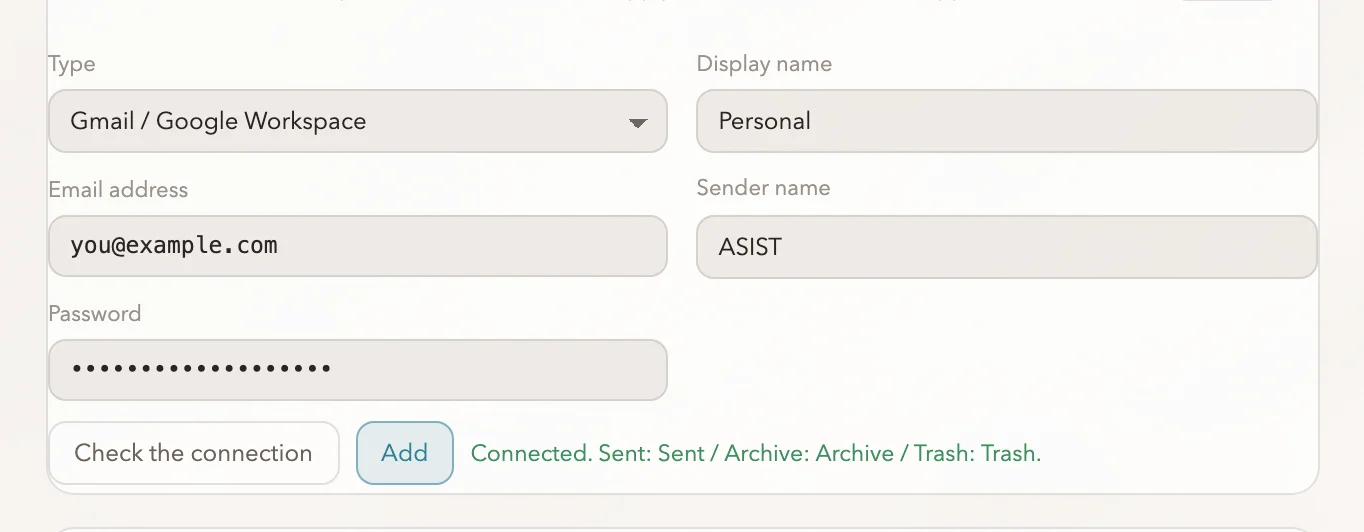
In the settings, under “Integrations” > “Mail”, click “Add”. Choose Gmail or iCloud under “Type”, and the server details are filled in. For other services, enter the IMAP and SMTP hosts and ports (for most services, IMAP uses 993 and SMTP uses 465 or 587). Enter a display name (such as “Work” or “Personal”), the email address, the sender name and the app password.
-
Check the connection and save
Click “Check the connection”, and ASIST connects to the server and looks for the Sent, Archive and Trash folders. It does not guess folders it cannot find; they show “None”, and you can set them later for each account. Click “Add”, and ASIST encrypts and saves the password and starts fetching your mail.
-
Check it
Say “Do I have any unread mail?” and check that the inbox card appears.
What ASIST fetches
Section titled “What ASIST fetches”| Item | Details |
|---|---|
| Period | “Days to fetch” in the settings (30 days by default). Older mail does not appear in the list. |
| Folders | Inbox, Sent and Archive. Trash and spam are not fetched. |
| New mail | ASIST waits on the inbox with IMAP IDLE and fetches new mail as soon as it arrives. Everything is fetched again every 5 minutes and when your Mac wakes from sleep. |
| Attachments | Only the file name and size are shown; the contents are not fetched. |
If it does not connect
Section titled “If it does not connect”- If you see “Invalid credentials”, the app password is wrong or 2-Step Verification is turned off. Create a new app password and enter it again for that account.
- If an account says its folders are not set, the server did not report which folders serve as Sent, Archive and Trash. In that account’s folder settings, enter the folder names used on the server (for Gmail, something like
[Gmail]/All Mail). - When the connection drops, ASIST reconnects, waiting longer between each try. The reason appears in the settings and in the mail screen.
- If ASIST says it does not know whether a message was sent, check the Sent folder before you send the same message again. ASIST does not resend automatically.
How ASIST handles your mail
Section titled “How ASIST handles your mail”The password is encrypted with a key from the macOS keychain before it is saved, and the settings file holds only the server details and folder names. Fetched mail is kept on your Mac and can be rebuilt from the server. Removing an account removes that account’s fetched mail and its password. The mail on the server stays as it is.
Mail read in the conversation is sent to the provider of the conversation model you chose, so that it can write a reply. It may also stay in the conversation history and be used in memory curation.